
How to Print a Test Page on Windows, Mac and Any Printer Brand
This guide explains how to print a test page on Windows, macOS, and the brands most people own. A test page shows you, in one sheet, whether your printer, its ink, and your computer are working together. This guide covers Windows 10 and 11, macOS, and control-panel steps for HP, Epson, Canon, Brother, Xerox, Lexmark, and Dell printers. For Samsung, see the note in that section.
Use a computer if the printer is connected to one. Use the control panel to test the printer on its own, for example when your computer is not responding. Knowing both methods gives you a fallback when one fails. You can also use our printer test page to print a color or grayscale sheet.
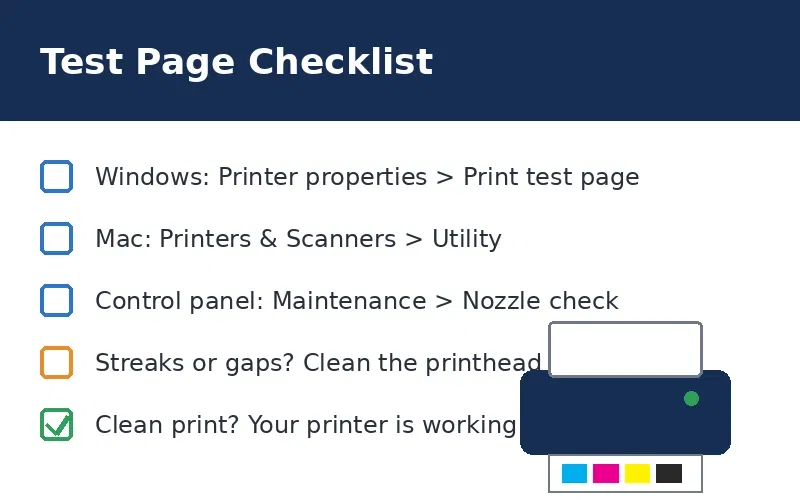
What a test page shows
A test page checks several things at once: whether text is sharp, whether each ink color prints evenly, whether lines line up, and whether the printer is talking to your computer. Most pages also list the printer model and driver, which helps when you contact support.
If the page prints cleanly, the printer is fine and the problem is more likely in the application or document. If it shows streaks, gaps, or faded colors, the printhead or ink is the usual cause, and a cleaning cycle is the next step. To check for marks on plain paper without a full test pattern, print a blank page first.
When to print a test page
Learning how to print a test page takes about two minutes, so make it your first step whenever something looks wrong.
How to print a test page from Windows
The steps below cover Windows 10 and Windows 11. The menu paths differ slightly, so follow the version that matches your computer.
Windows 11
Windows 10
If the test page does not print, check the USB or Wi-Fi connection and make sure the printer is the active device in Printers & scanners. Use Printer properties to find the Print test page button. The plain Properties option does not include it. If you still cannot work out how to print a test page here, check which printer is set as default.
How to print a test page on a Mac
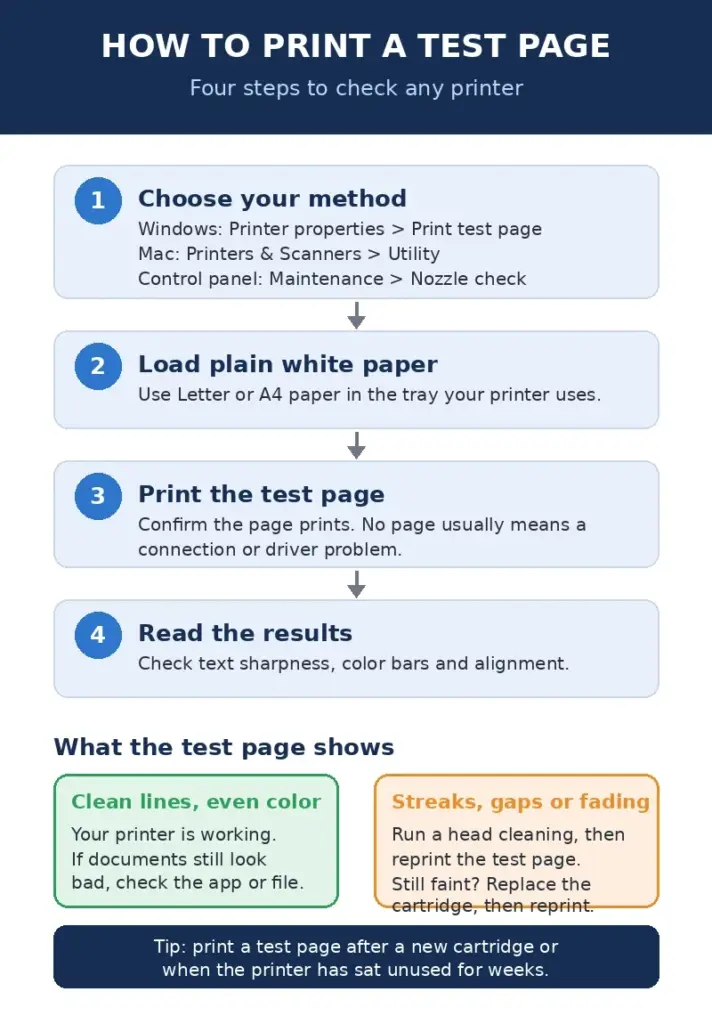
Knowing how to print a test page on a Mac also helps after a driver update. On older versions of macOS, the path starts at System Preferences > Printers & Scanners. The Utility tab also holds nozzle check and head cleaning tools, which you will need if the test page shows problems.
How to print a test page from the control panel
Control-panel menus change between models, even within the same brand. The steps below show how to print a test page from each brand’s menu. Use them as a guide, and check your manual if a menu name differs. Load plain white paper in the size your printer uses, usually Letter or A4.
HP
Read the color bars and text on the report. Use the cleaning option from the same menu if lines are missing. For HP’s official steps on printing a print quality diagnostic report, see HP’s support page.
Epson
If there are gaps or the pattern is faint, run a head cleaning from the same menu, then print the nozzle check again. Epson recommends a power cleaning only when repeated head cleanings do not help.
Canon
Look for missing lines or horizontal white streaks. Canon says either sign means the printhead needs cleaning. Replace a nearly empty cartridge first, because a low cartridge can give a misleading pattern.
Brother
Brother’s support pages describe this path for most current models. If your screen uses different labels, look for a Print Options or Print Quality menu that contains Test Print.
Xerox
The configuration page lists the printer’s settings and model details. It confirms the printer is responding, though it does not test print quality the way a nozzle or color test does.
Lexmark
Lexmark’s Menu Settings Page shows the printer’s configuration and confirms it is responding. Use it to check settings, then follow the steps above for how to print a test page if you need to check quality.
Samsung
Verify before publishing: Samsung menu names vary between Xpress, Xpress Multifunction, and ProXpress models. I did not find an official Samsung page that confirmed these steps. Check each step against Samsung’s manual for the exact model before publishing.
Dell
Dell’s Windows steps match the section above. Open Devices and Printers, right-click your printer, choose Printer Properties (not Properties), then select Print Test Page on the General tab.
Common problems and fixes
Use this table after you print a test page, because knowing how to print a test page only helps if you can read the result.
|
Problem on the test page |
Likely cause |
What to do |
|---|---|---|
|
Streaks, gaps, or missing lines |
Clogged printhead or low ink |
Run a head cleaning, reprint, and replace the cartridge if the problem stays |
|
Faded or dull colors |
Low ink or an old cartridge |
Check ink levels, replace the cartridge, then reprint |
|
One color missing |
Empty cartridge or blocked nozzles for that color |
Check that cartridge first, then clean the head |
|
Misaligned text or colors |
Cartridge not seated or alignment off |
Run the alignment utility, reseat the cartridge, then reprint |
|
Test page does not print |
Connection or driver problem |
Reconnect the printer, restart both devices, then reinstall the driver |
If you want to type your own text on a sheet and compare print quality, try the online notepad. It lets you print a page of your own text, which shows whether body text prints evenly.
Once you know how to print a test page on your model, return to our printer test page tool for a color or grayscale sheet.